<<<<<<< HEAD Create IAM User ======= Create IAM user >>>>>>> 77f5b8b30efdbf105a39b1bd0e2e1ea4badd756e
<<<<<<< HEADCreate Admin Group
-
Log in to the Console at the AWS Web Service page
-
Click your account name in the top-right corner and choose Security Credentials
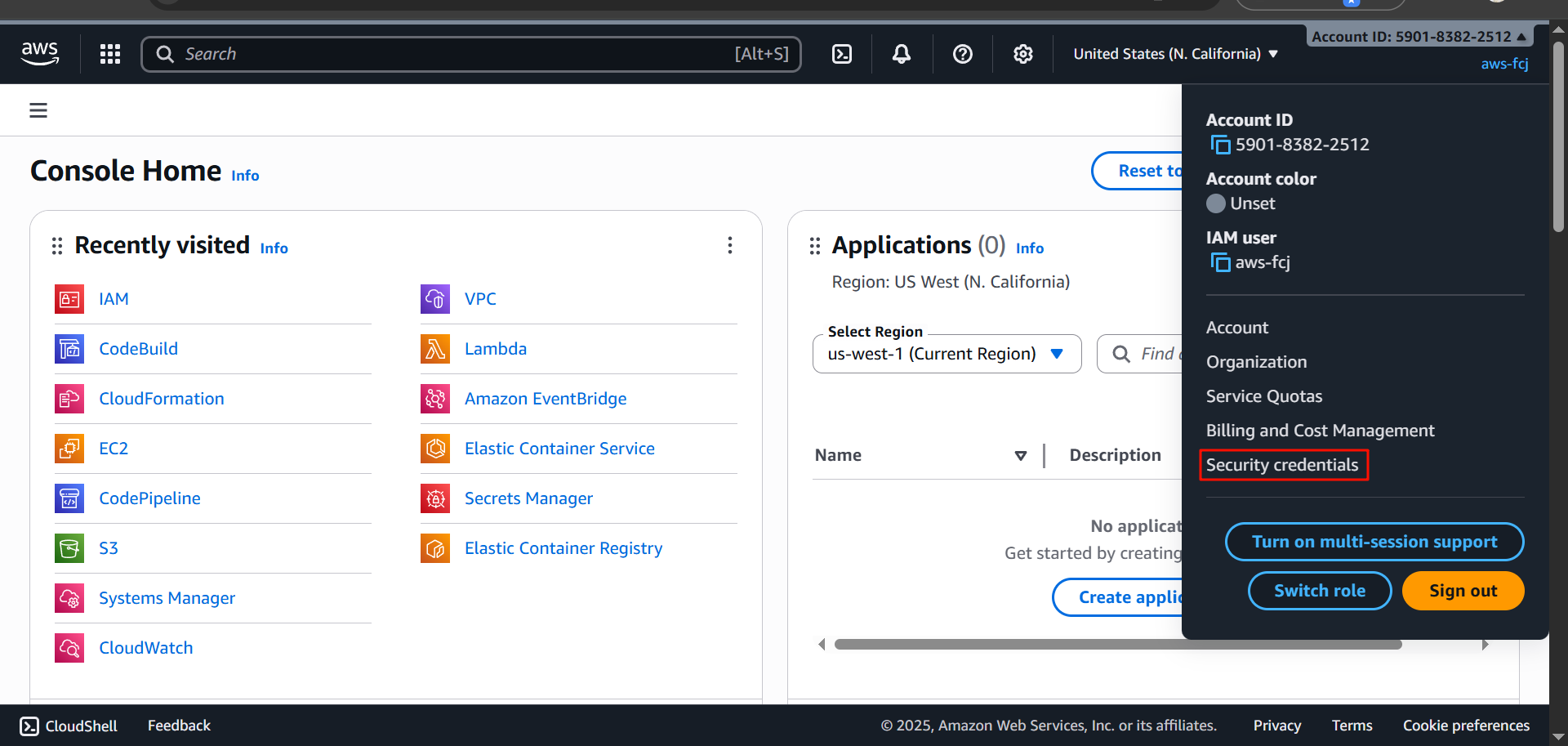
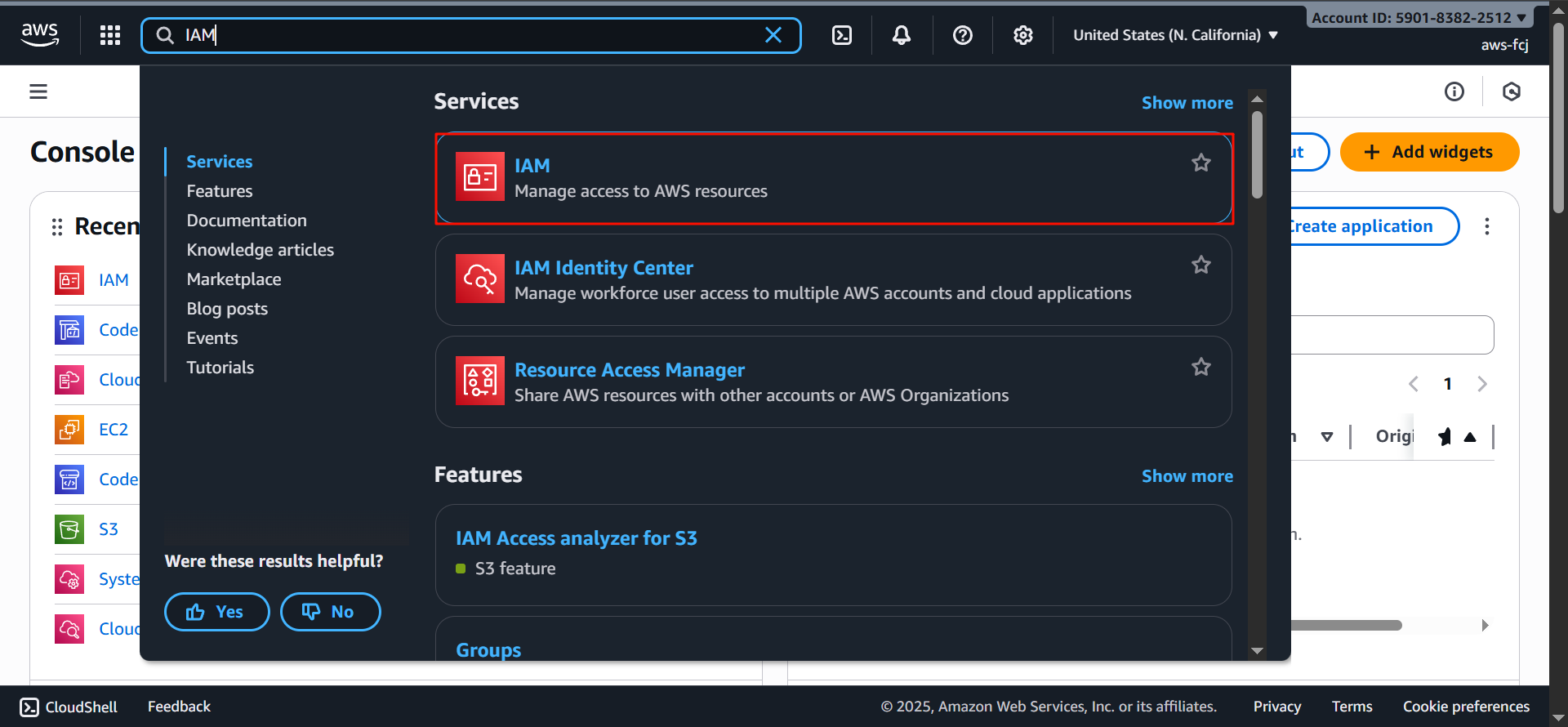
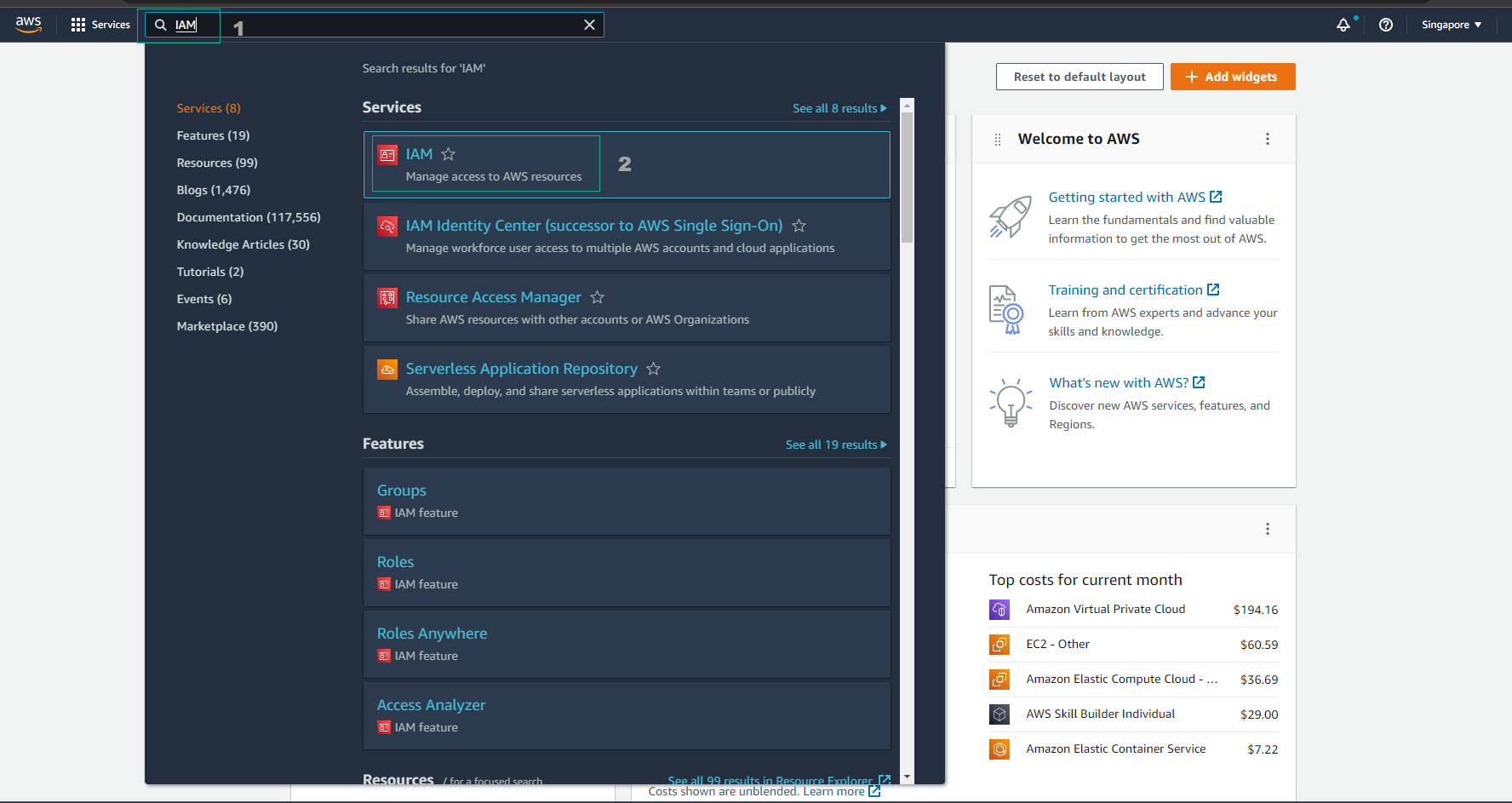
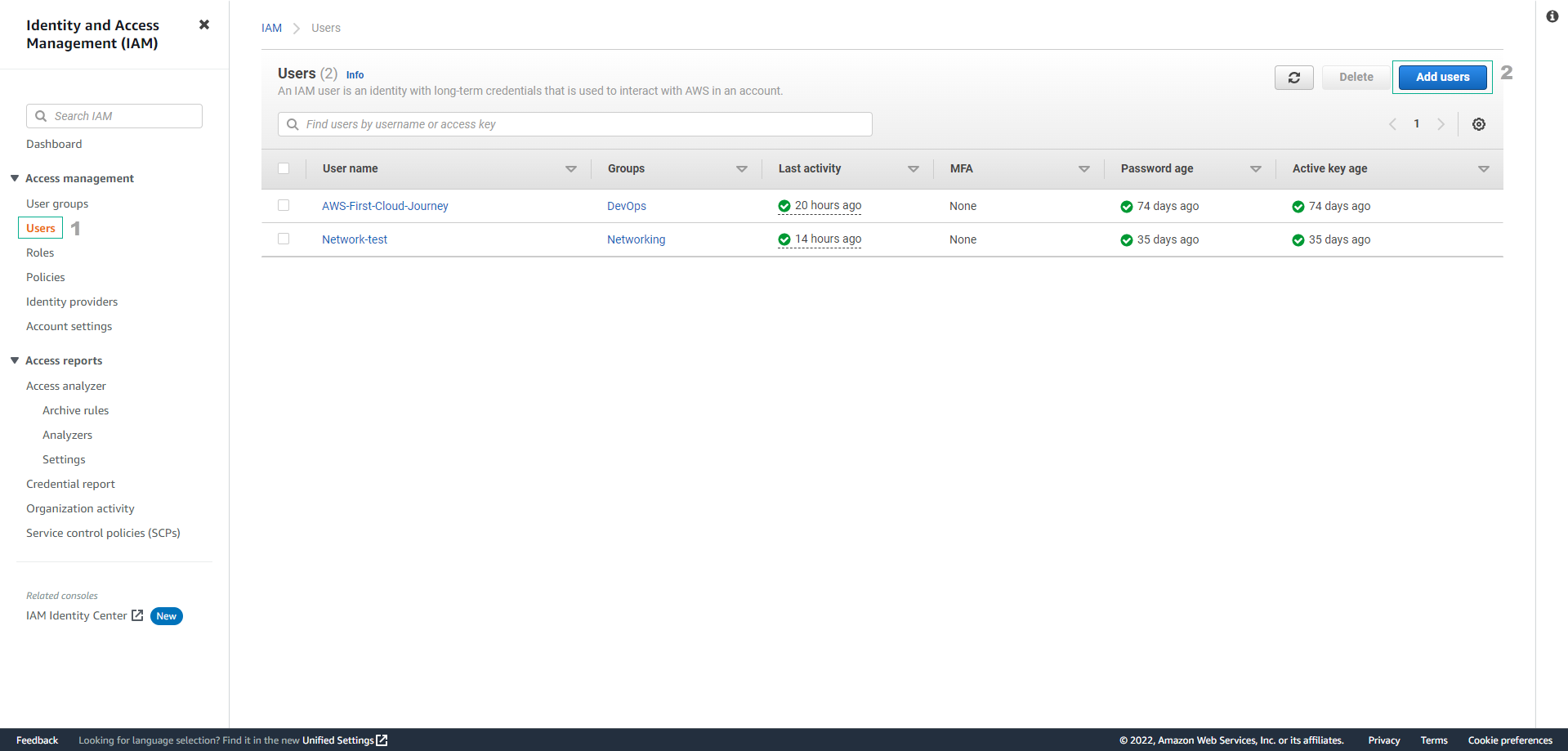
If you don’t see the Security Credentials menu, click the search icon and type IAM.
Then select the IAM service to access its management console.
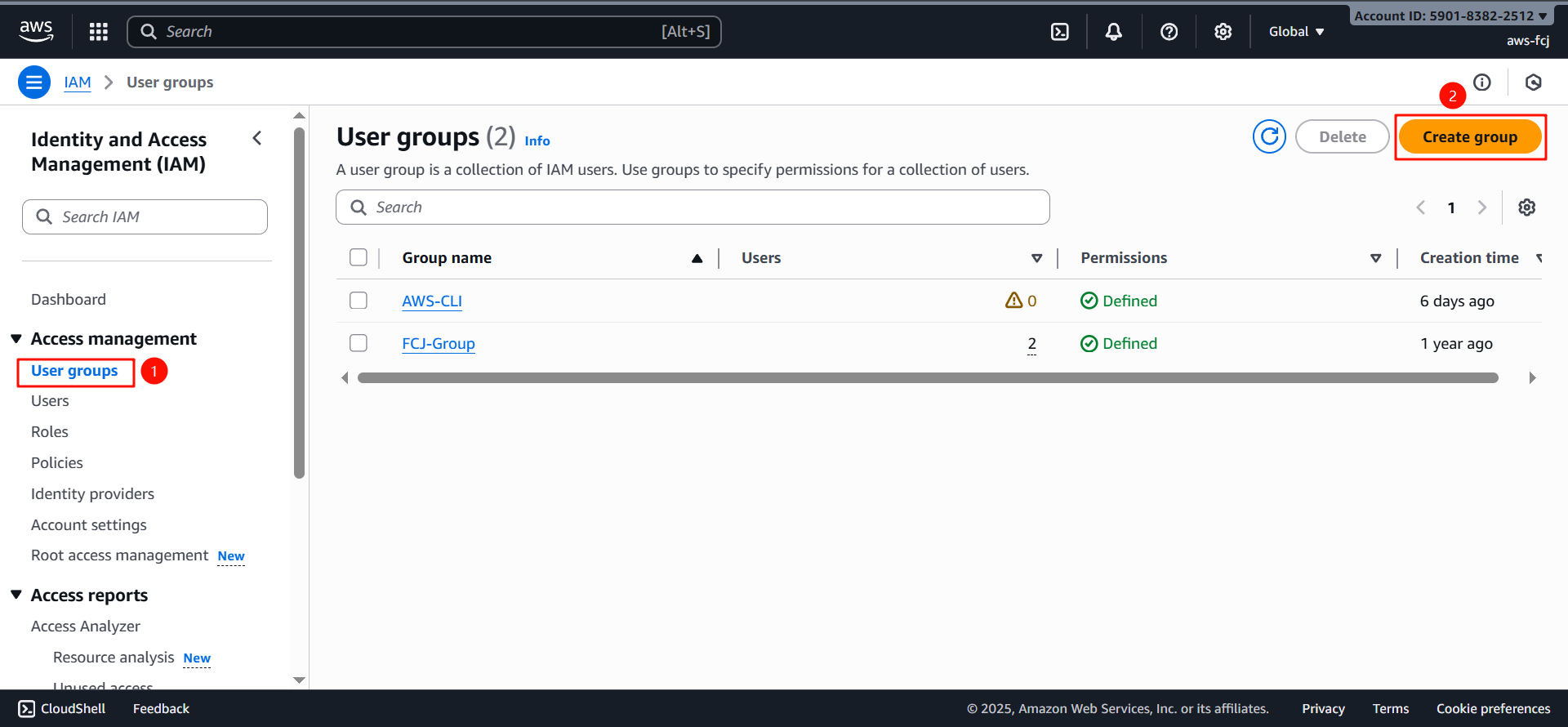
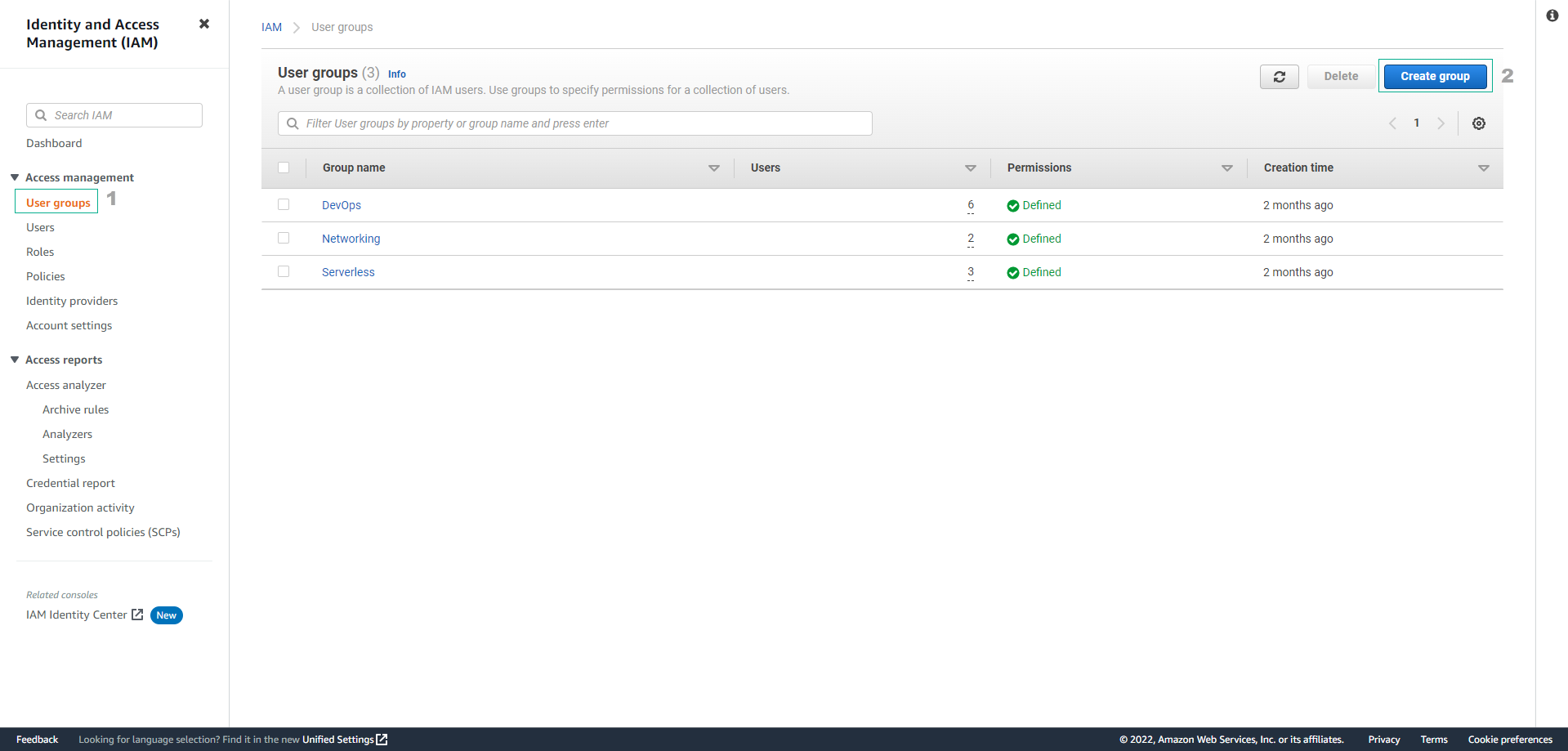
- In the left navigation pane, choose User Groups, then select Create Group
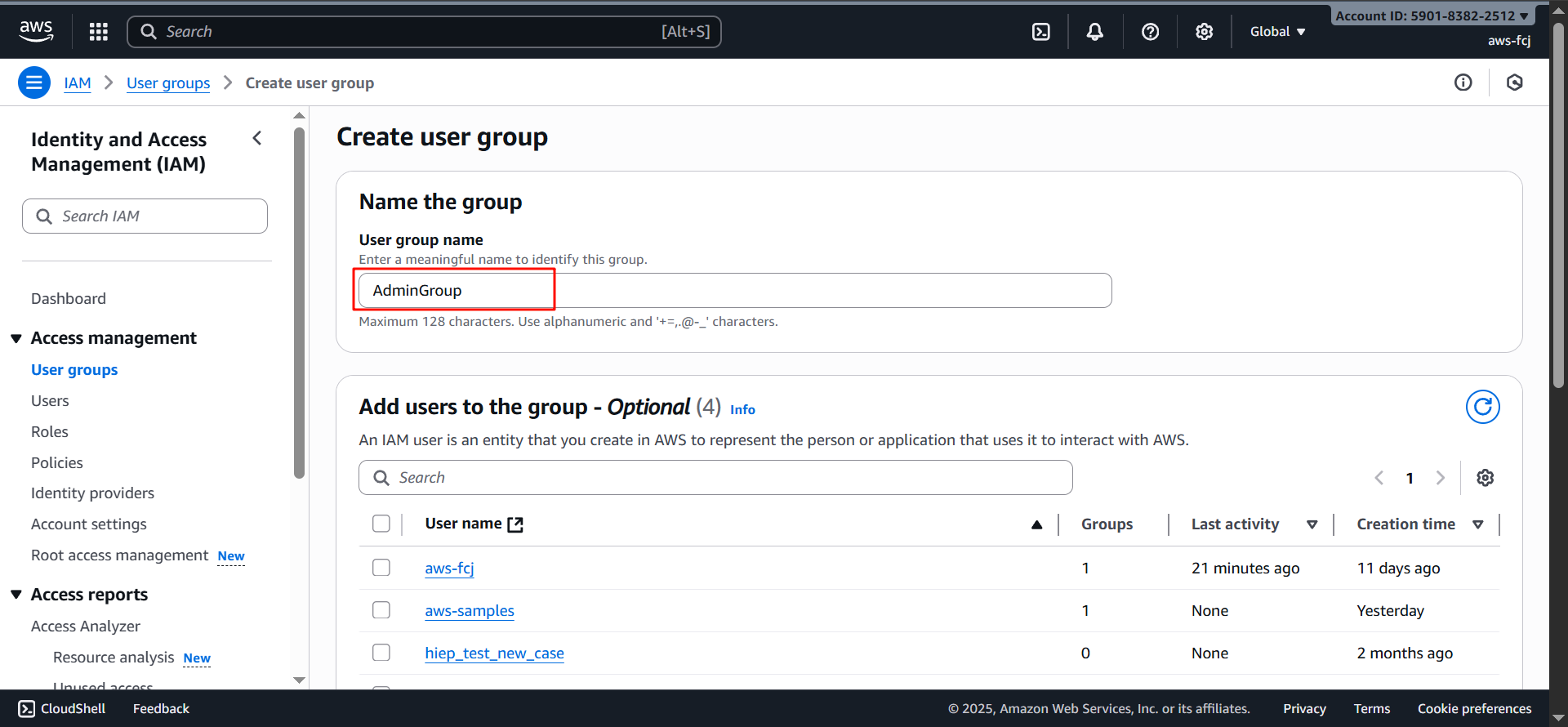
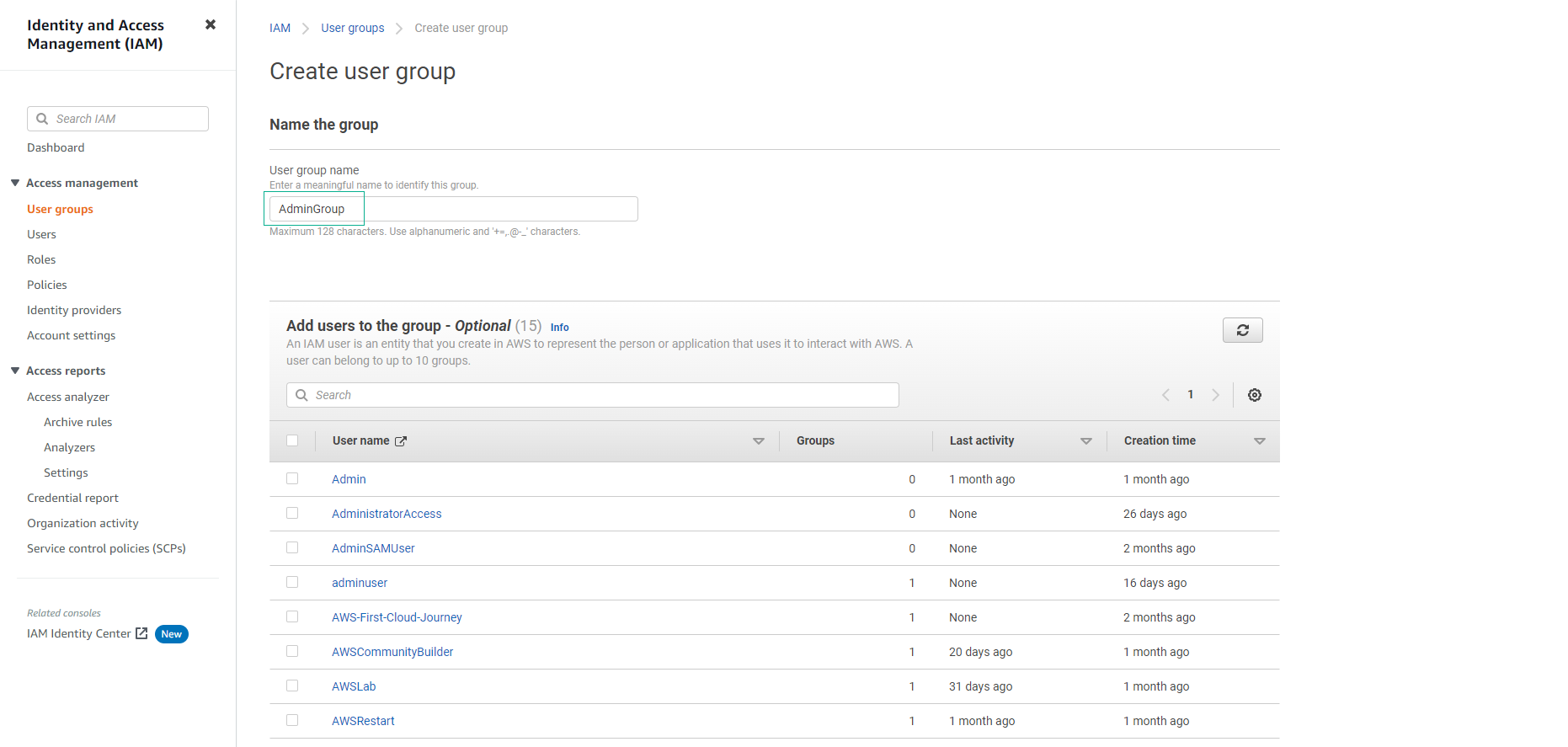
- Under Name the group, enter a name for the group (e.g., AdminGroup) and scroll down
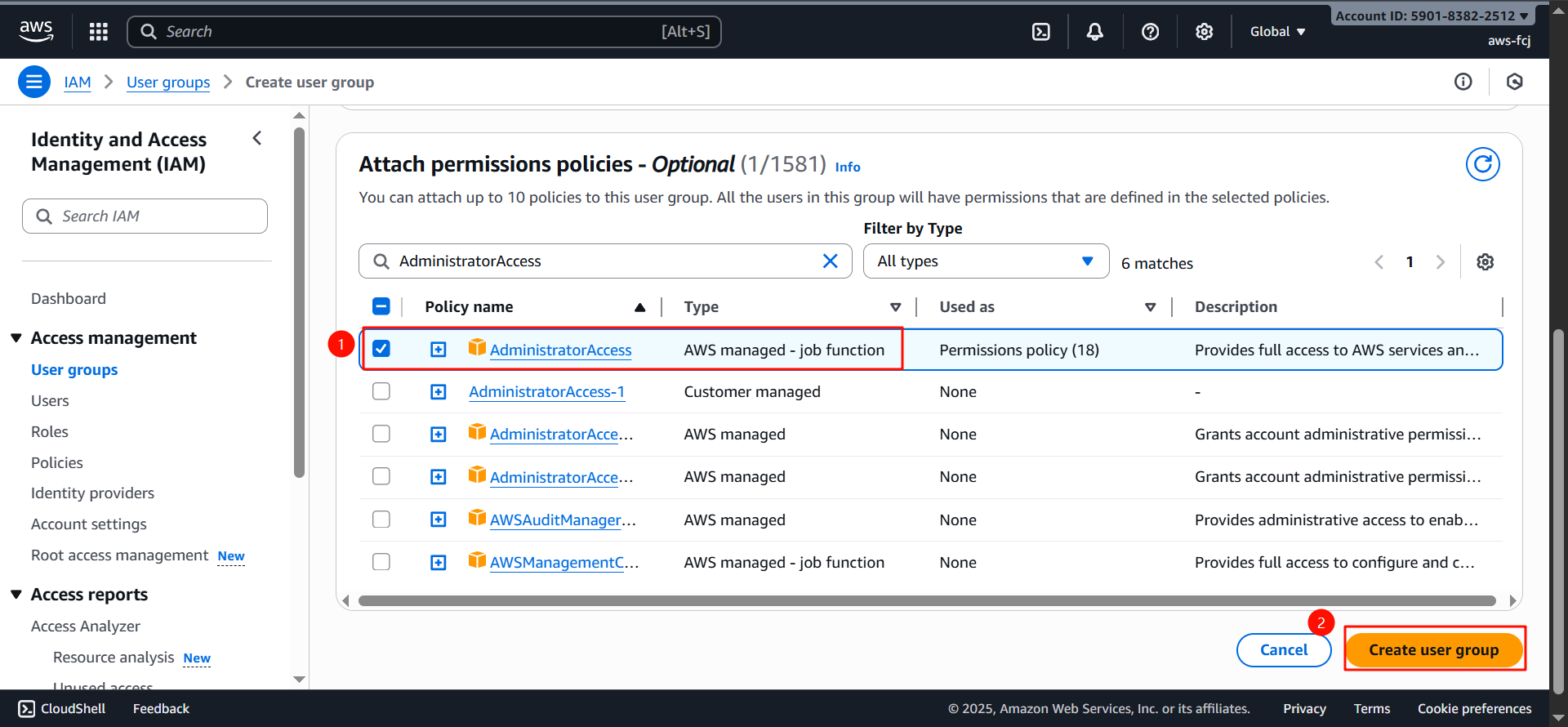
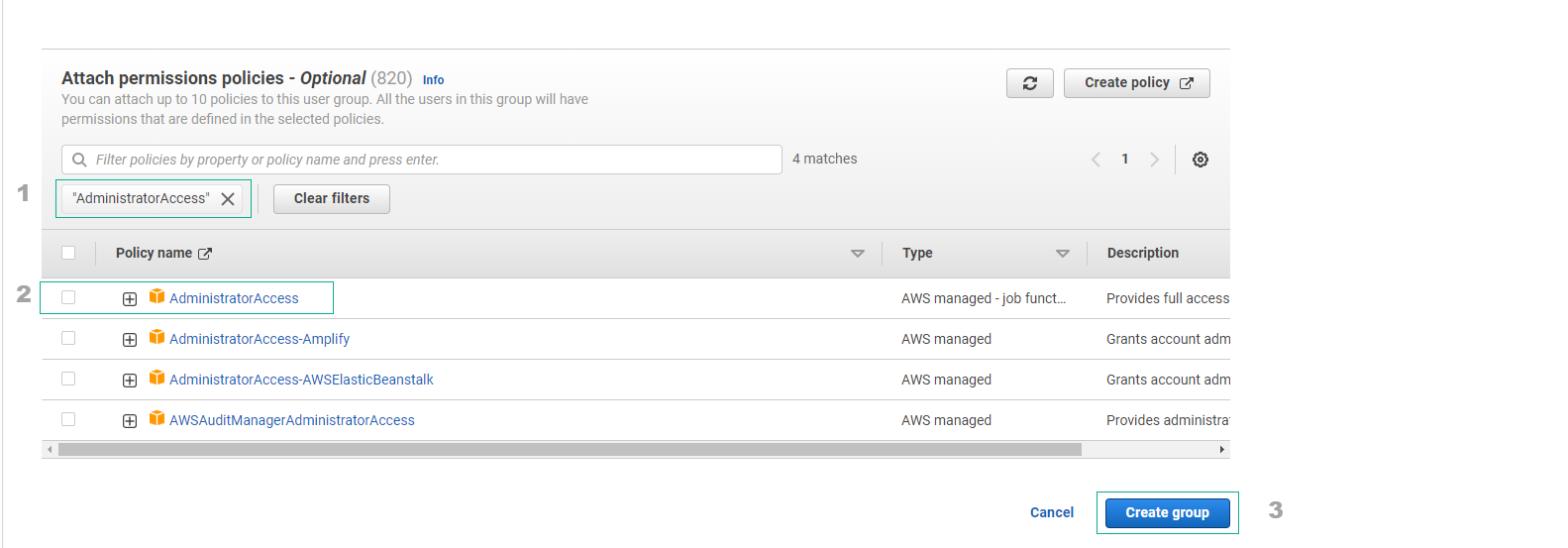
- In the Attach permissions policies section, search for
AdministratorAccessand press Enter.
From the results, select AdministratorAccess. Finally, choose Create Group.
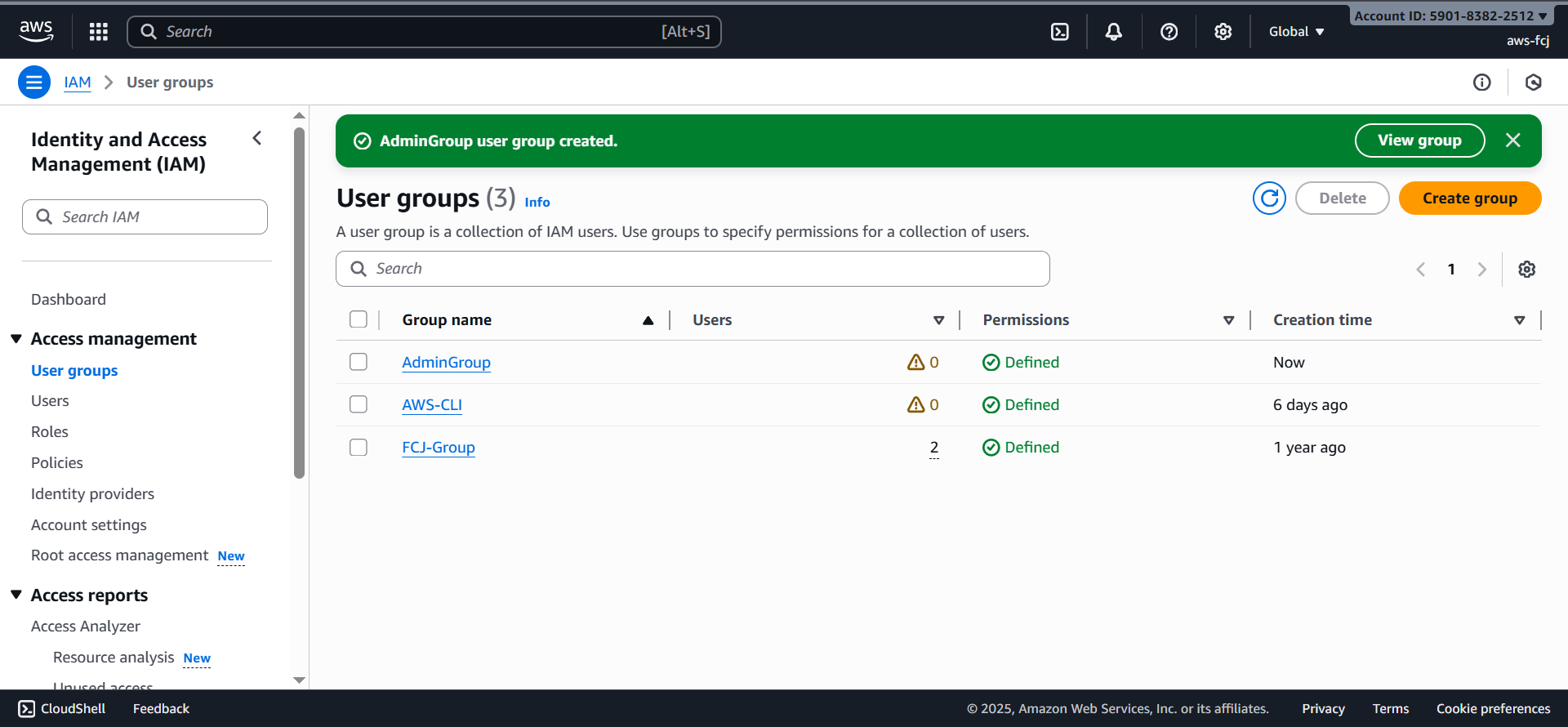
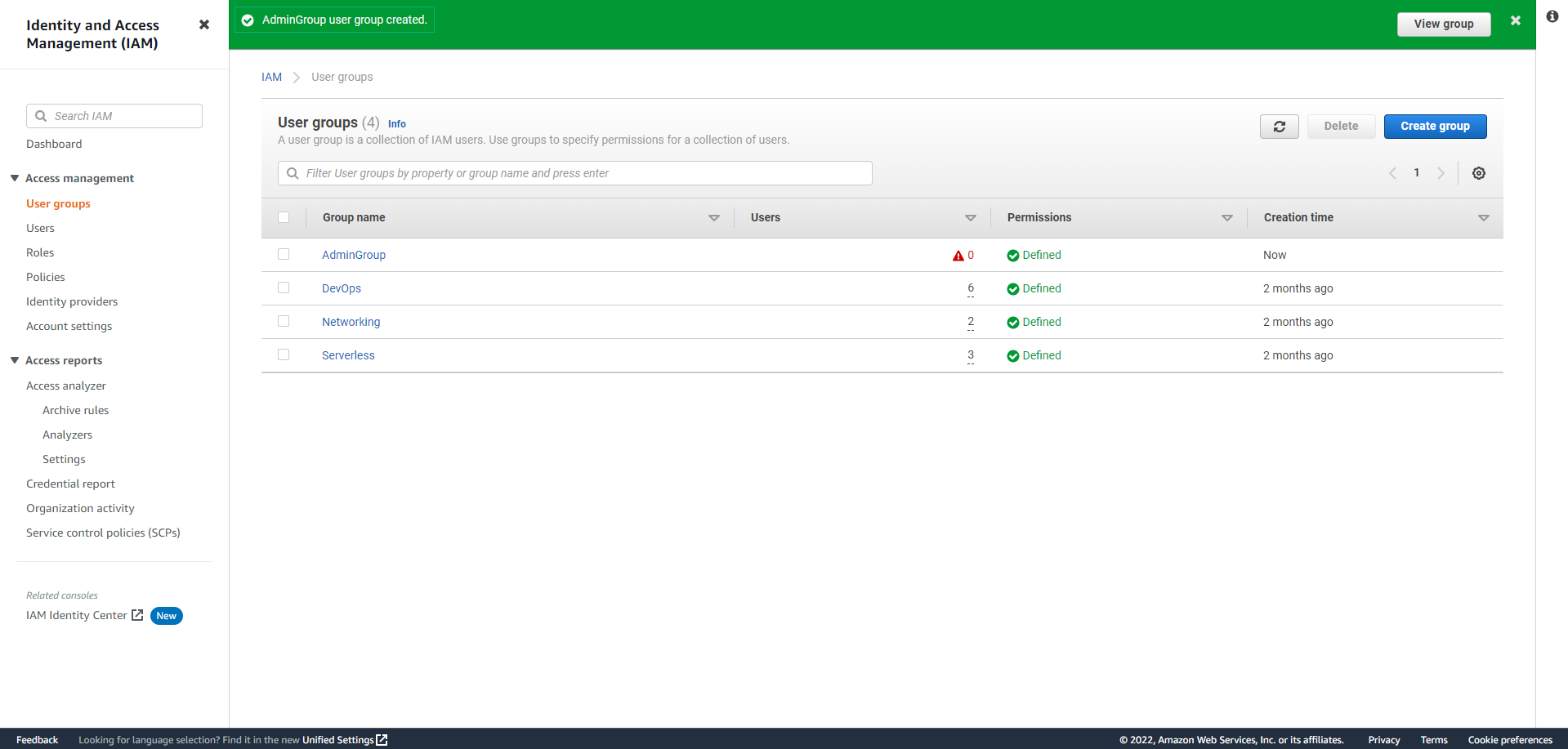
- The admin group has been created.
Create Admin User
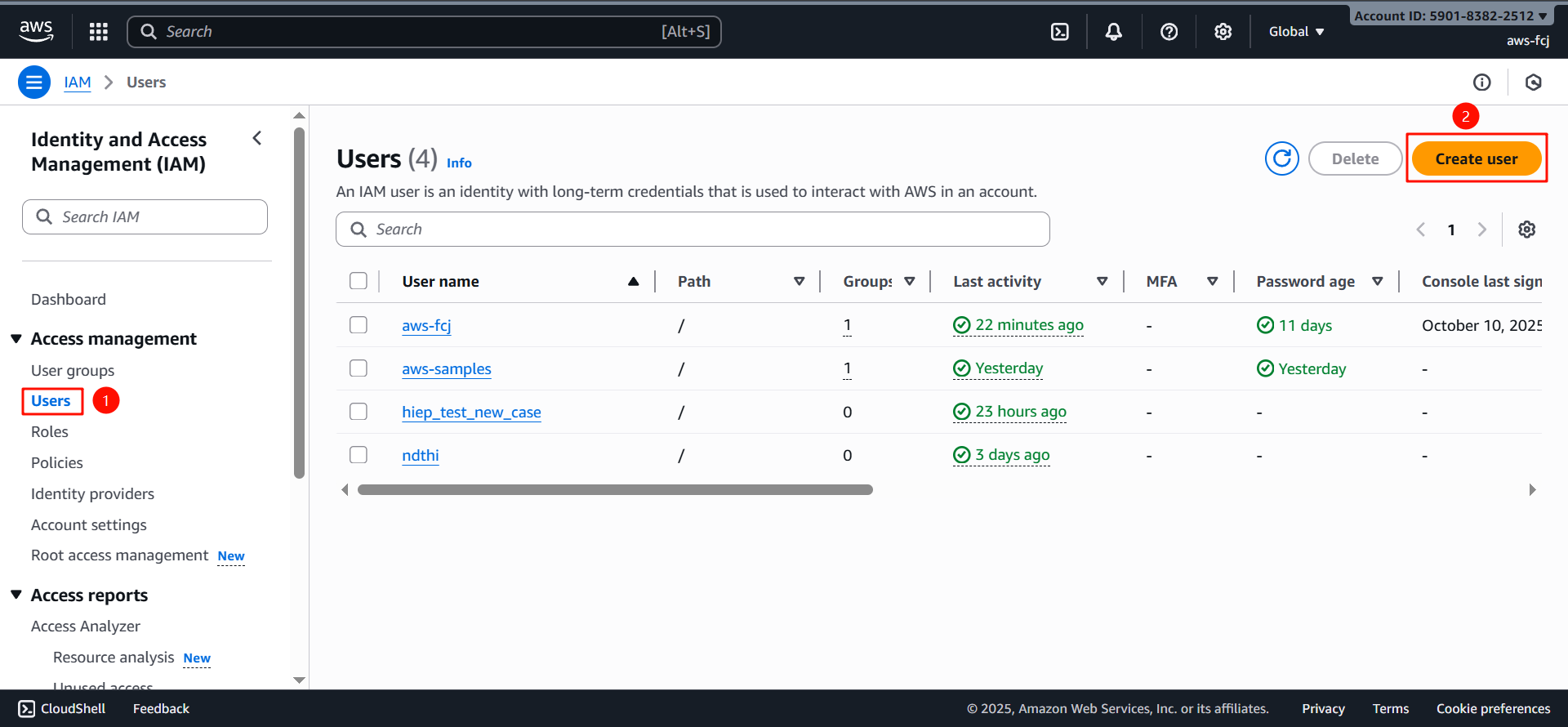
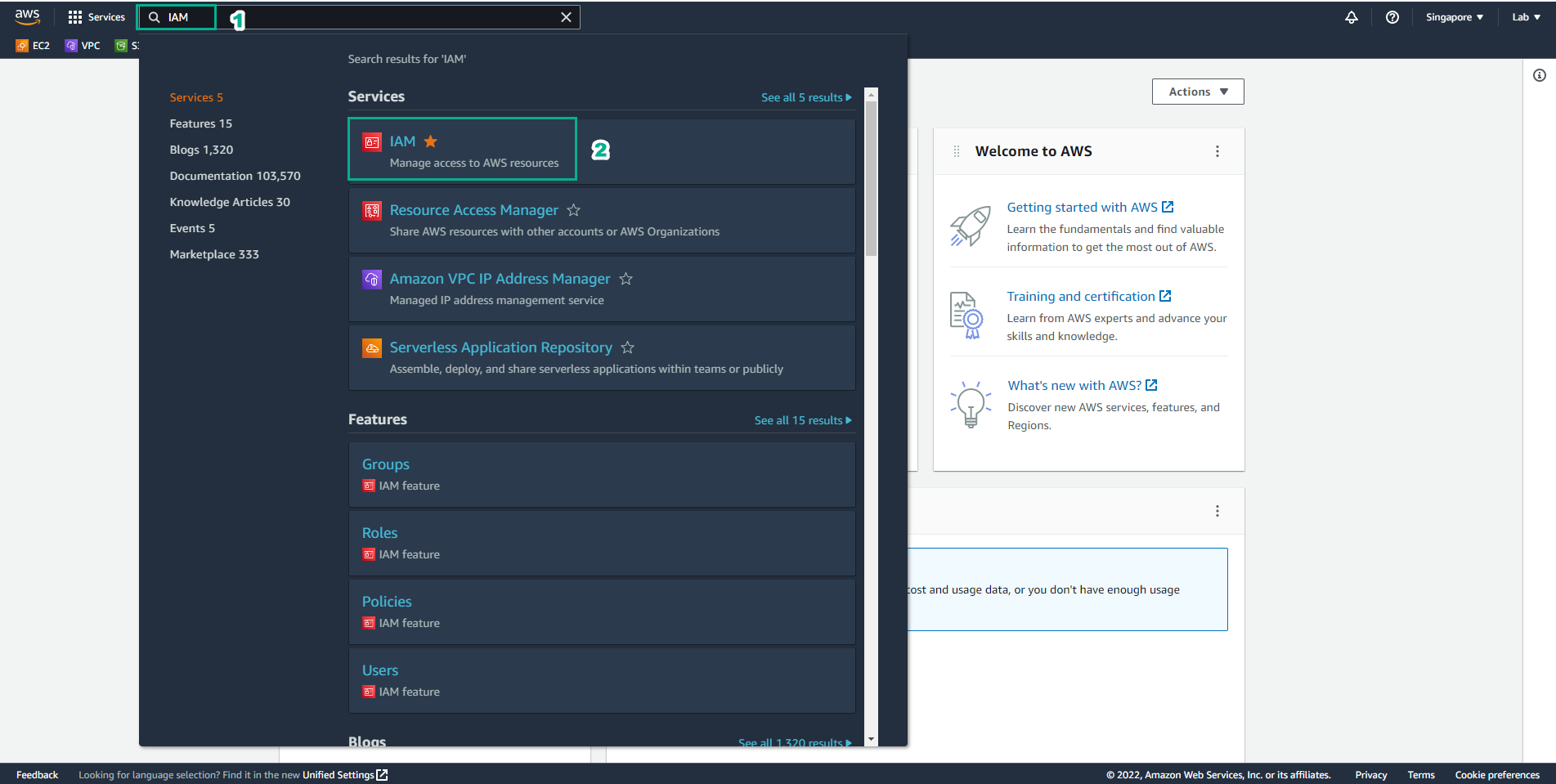
- In the left navigation pane, choose Users, then select Add User
- On the Specify user details page, under User details, enter a username for the new user in the User name field. This will be their AWS login name. Example: AdminUser
-
Select Provide user access to the – AWS Management Console (optional). This option creates AWS Management Console login credentials for the new user.
-
You will be asked whether you want to provide console access to a person. AWS recommends creating users in IAM Identity Center instead of IAM.
-
To switch to creating a user in IAM Identity Center, choose Specify a user in Identity Center.
-
If IAM Identity Center is not enabled, selecting this option will redirect you to the service page so you can enable it. For details, see:
https://docs.aws.amazon.com/singlesignon/latest/userguide/getting-started.html -
If IAM Identity Center is already enabled, selecting this option will take you to the “Specify user details” page in the Identity Center. For more information, see:
https://docs.aws.amazon.com/singlesignon/latest/userguide/addusers.html -
If you cannot use IAM Identity Center, select I want to create an IAM user.
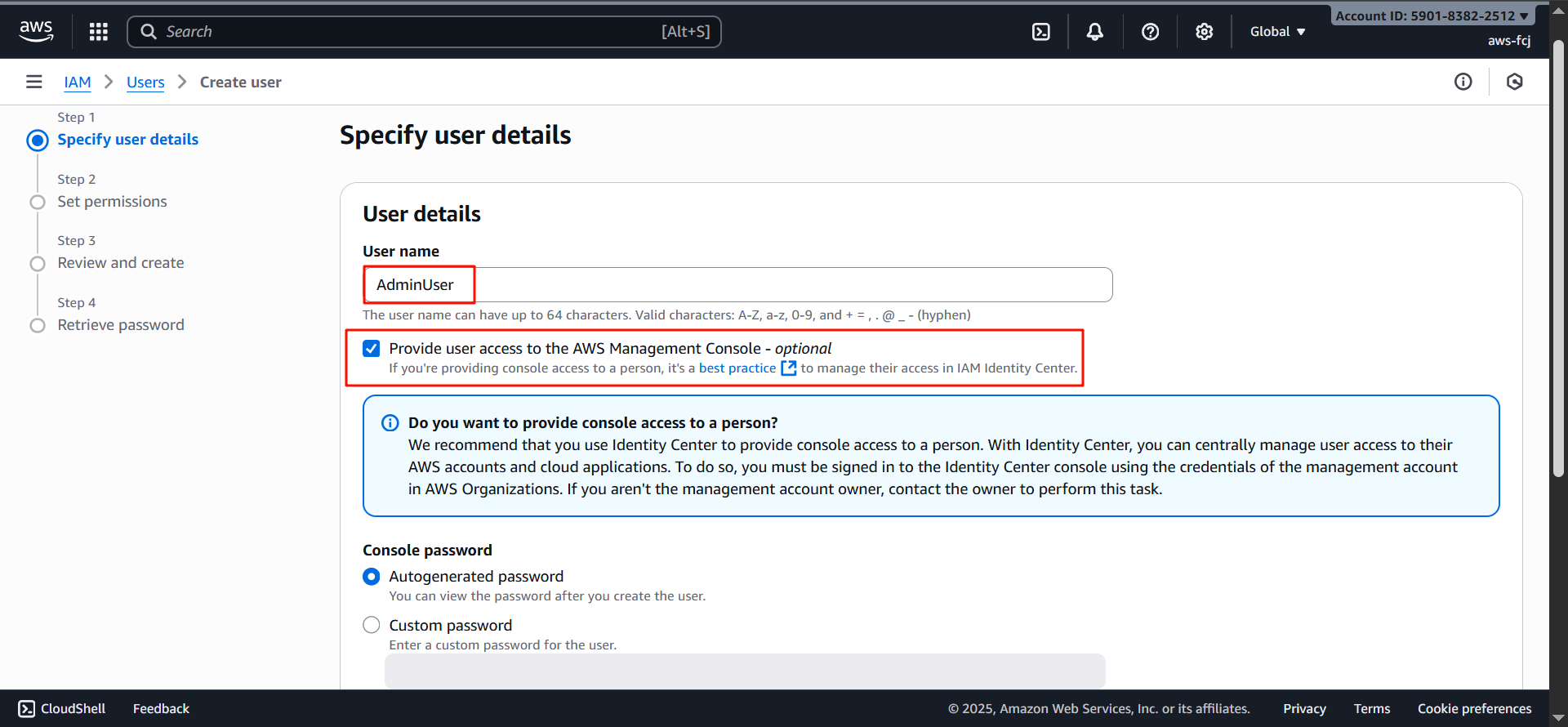
- For Console password, choose one of the following:
-
Autogenerated password — The user receives a randomly generated password that meets the account password policy. You can view or download the password later.
-
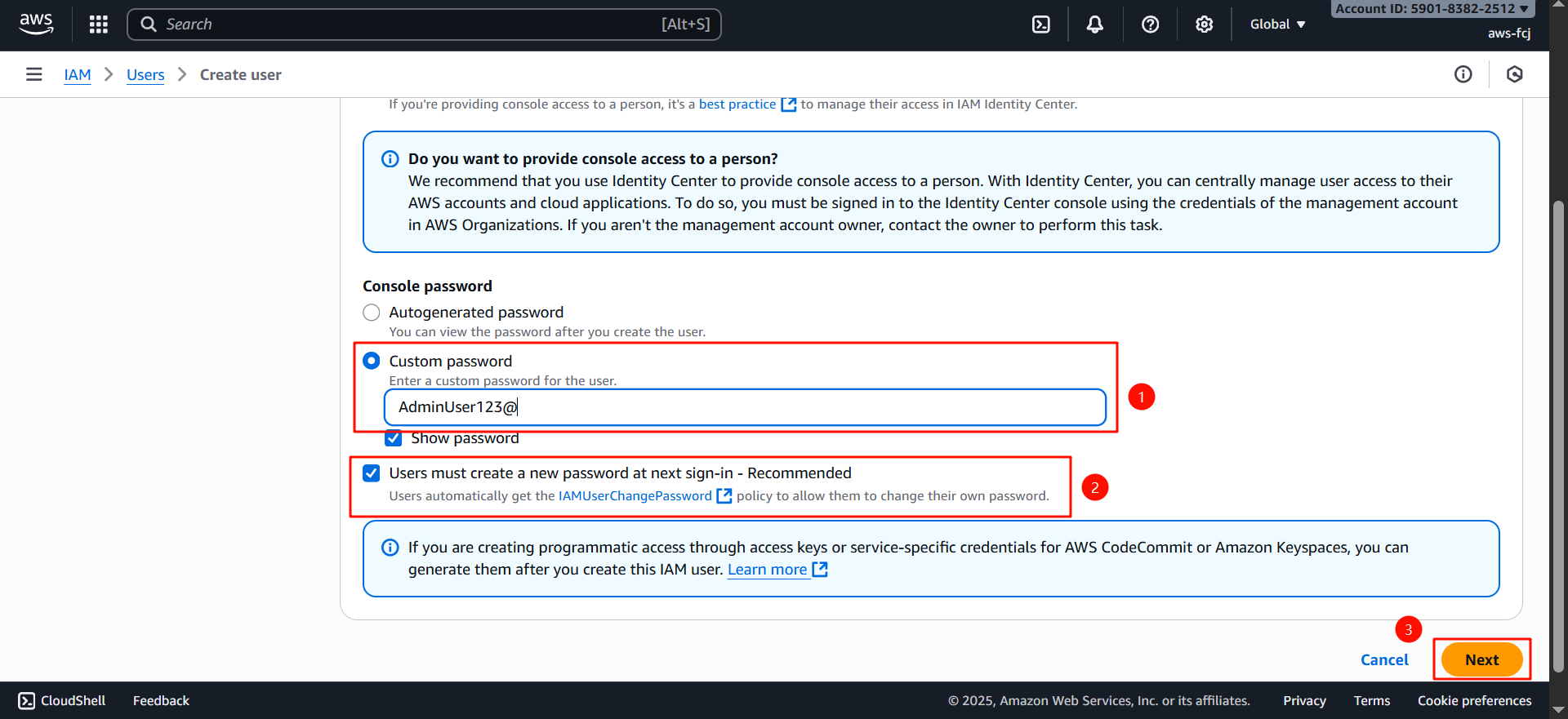
Custom password — Assign a password by entering it manually.
-
(Optional) Users must create a new password at next sign-in (recommended) is selected by default to force the user to change their password upon first login.
-
Choose Next
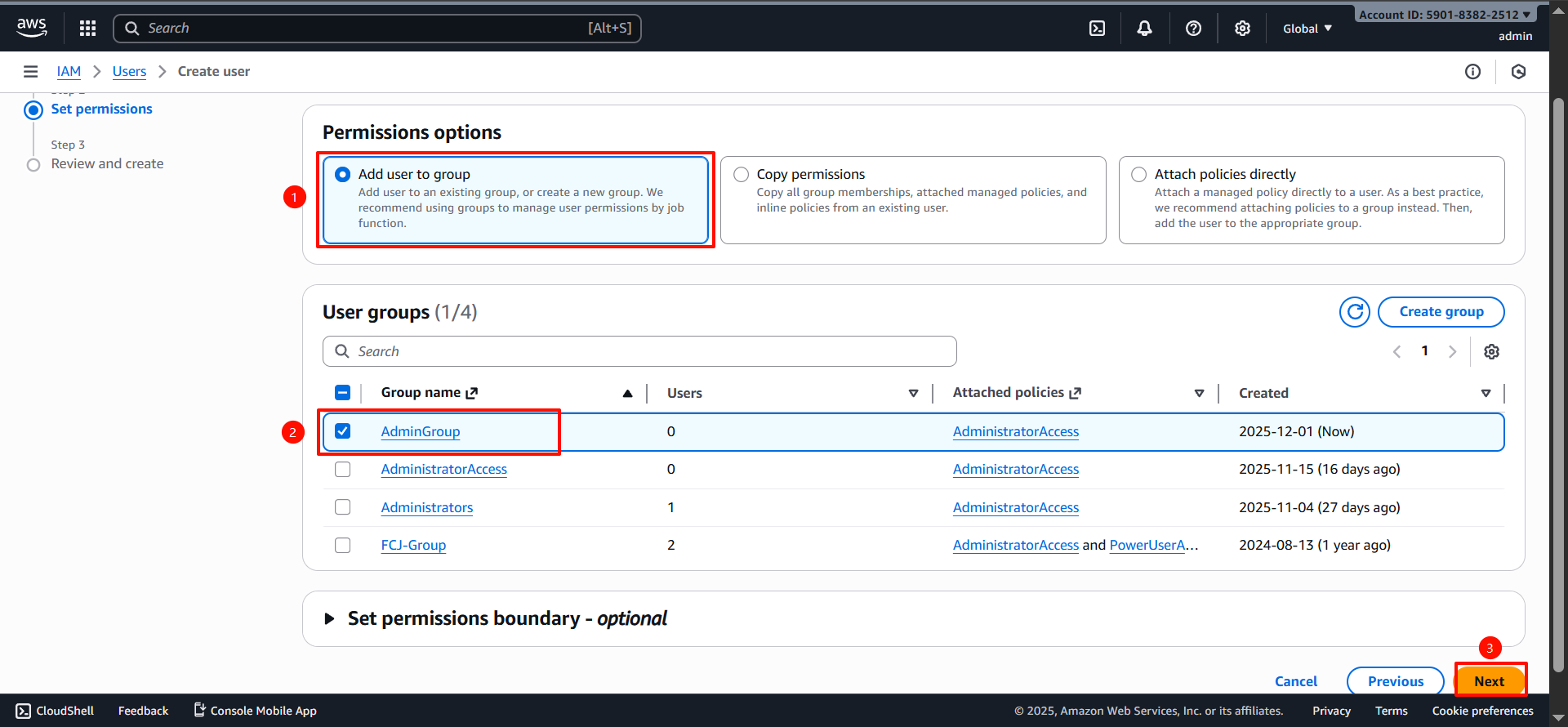
- On the Set permissions page, select how you want to assign permissions to the user. Choose one of the following three options:
-
Add user to group — Assign the user to one or more groups that already have permission policies attached. IAM displays a list of groups in your account along with their attached policies. You may also create a new group.
-
Copy permissions — Copy all group memberships, attached managed policies, inline policies, and permission boundaries from an existing user. Choose an existing user whose permissions match the needs of the new user.
-
Attach policies directly — View and attach AWS-managed or customer-managed policies directly to the user. You may also create a new policy. After creating it, return to this tab to attach it.
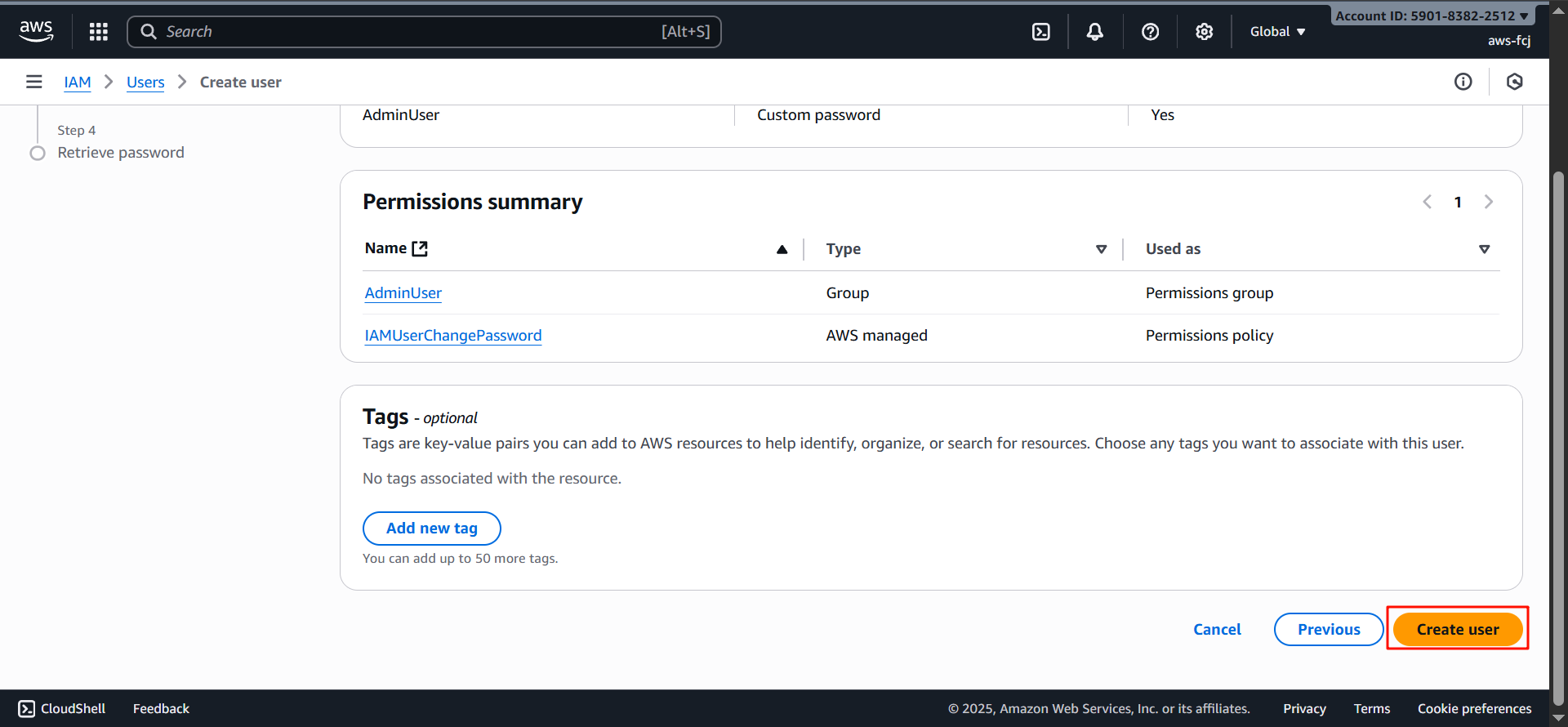
- (Optional) On the Review and create page, under Tags, choose Add new tag to associate key–value metadata with the user.
- Review all settings you have selected so far. When you are ready, choose Create user.
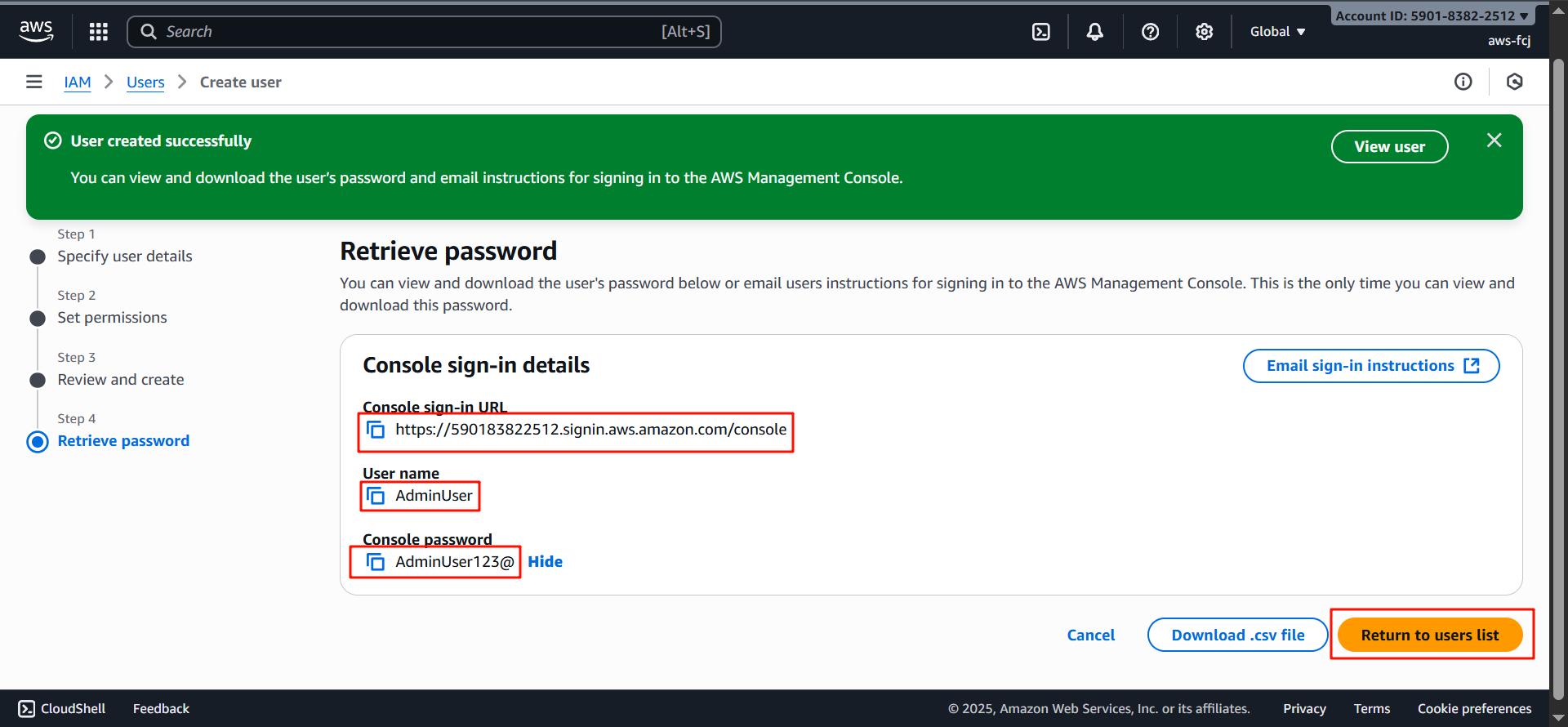
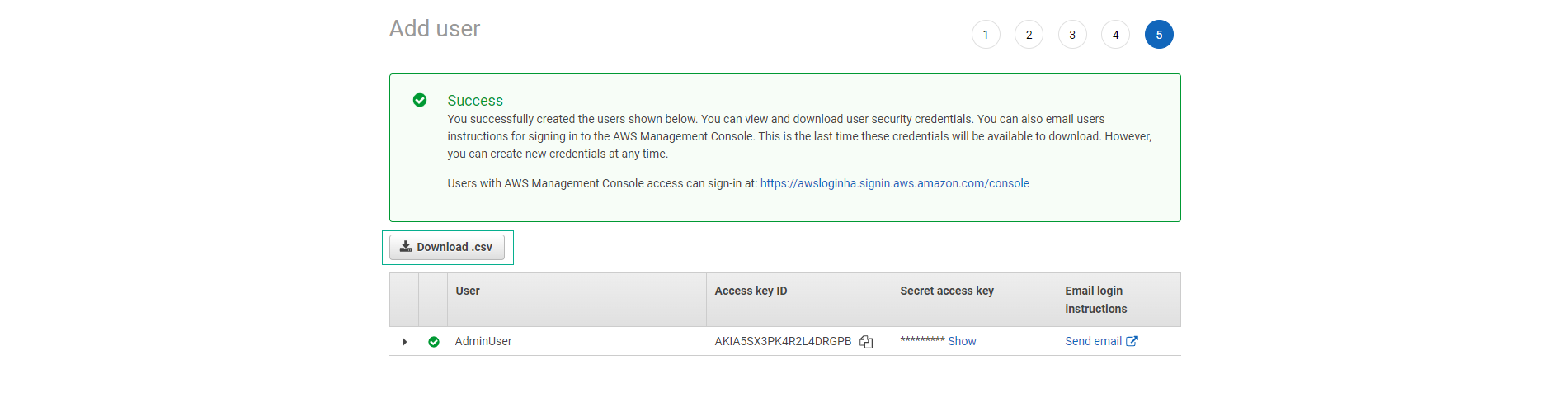
- On the password retrieval page, obtain the assigned password for the user:
-
Select Show next to the password to display it and record it manually.
-
Select Download .csv to download the user’s credentials as a .csv file and store it securely.
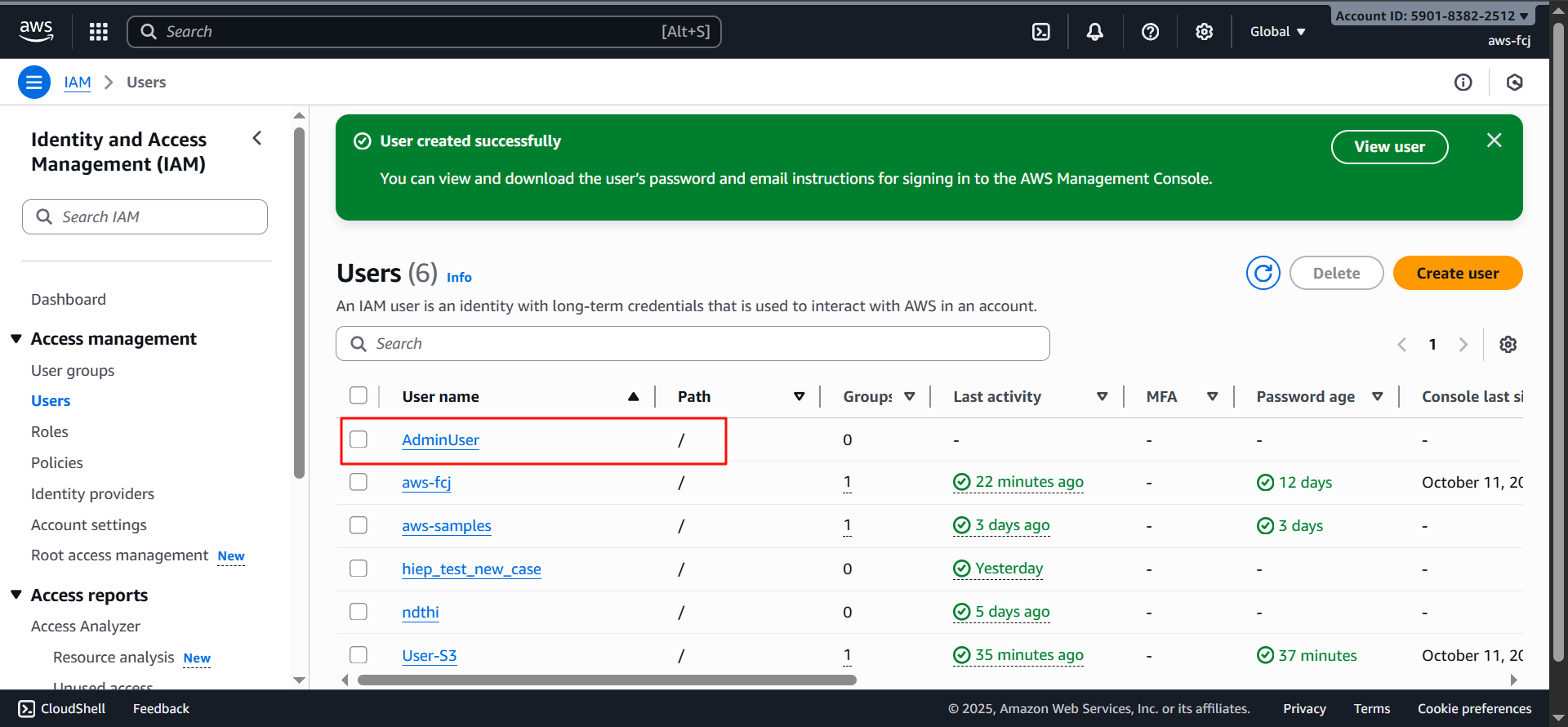
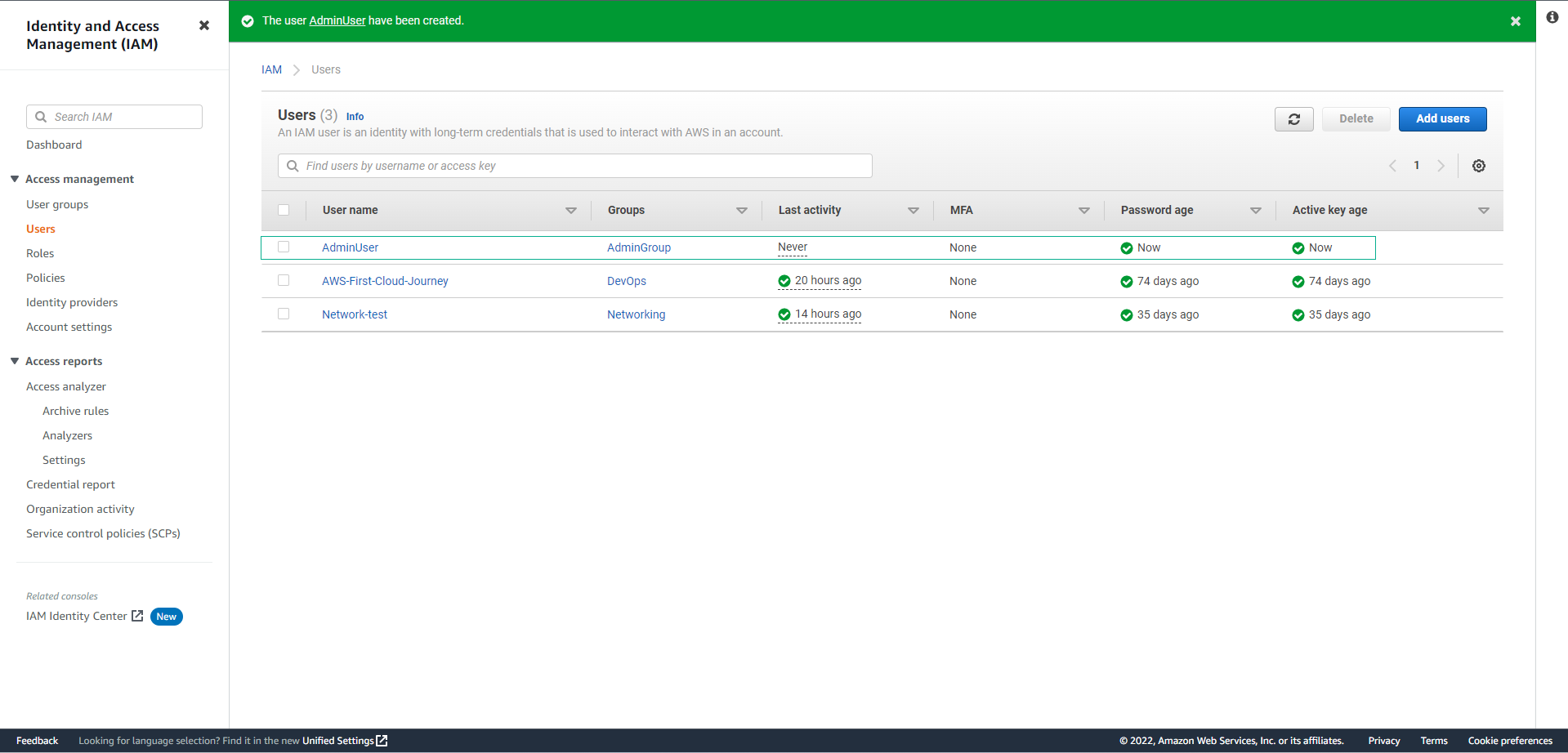
- Verify the user has been created successfully.
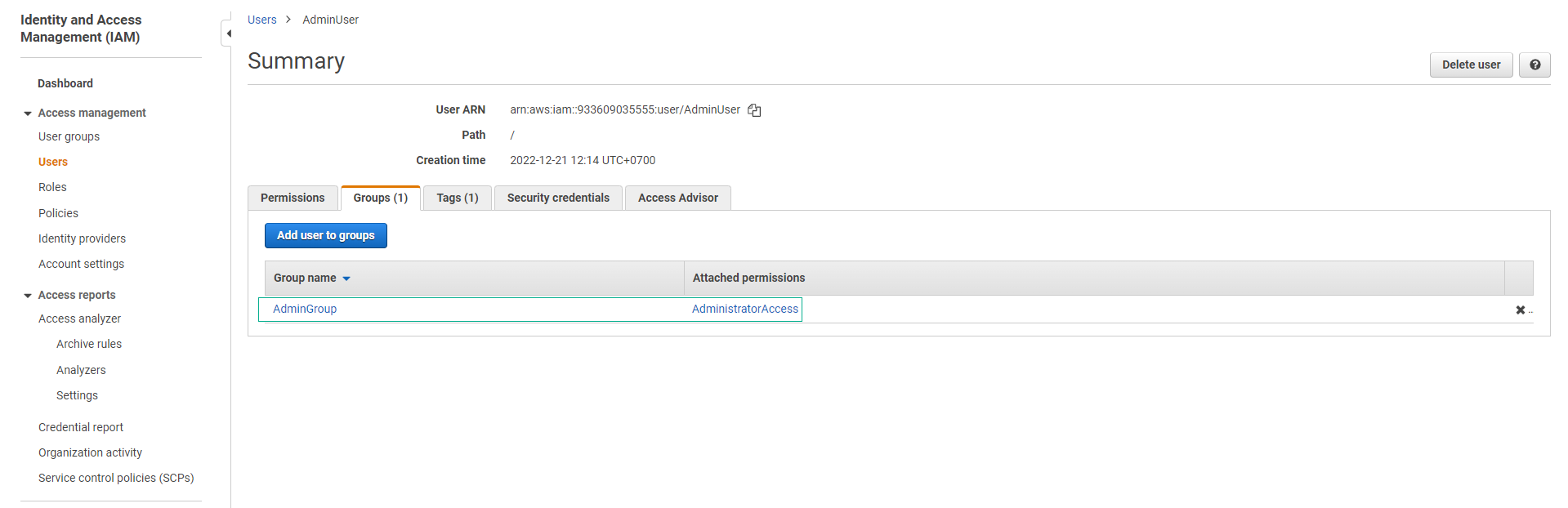
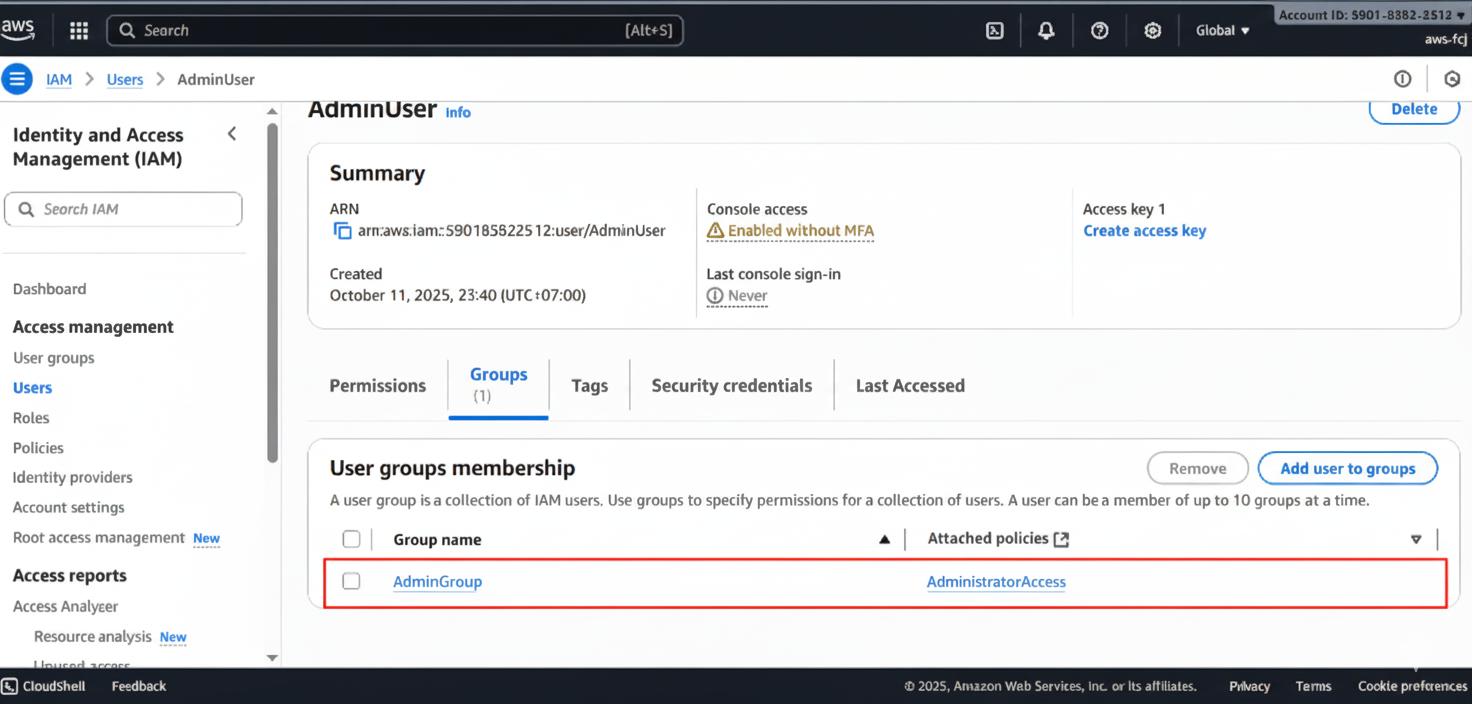
- Verify the user’s group membership.
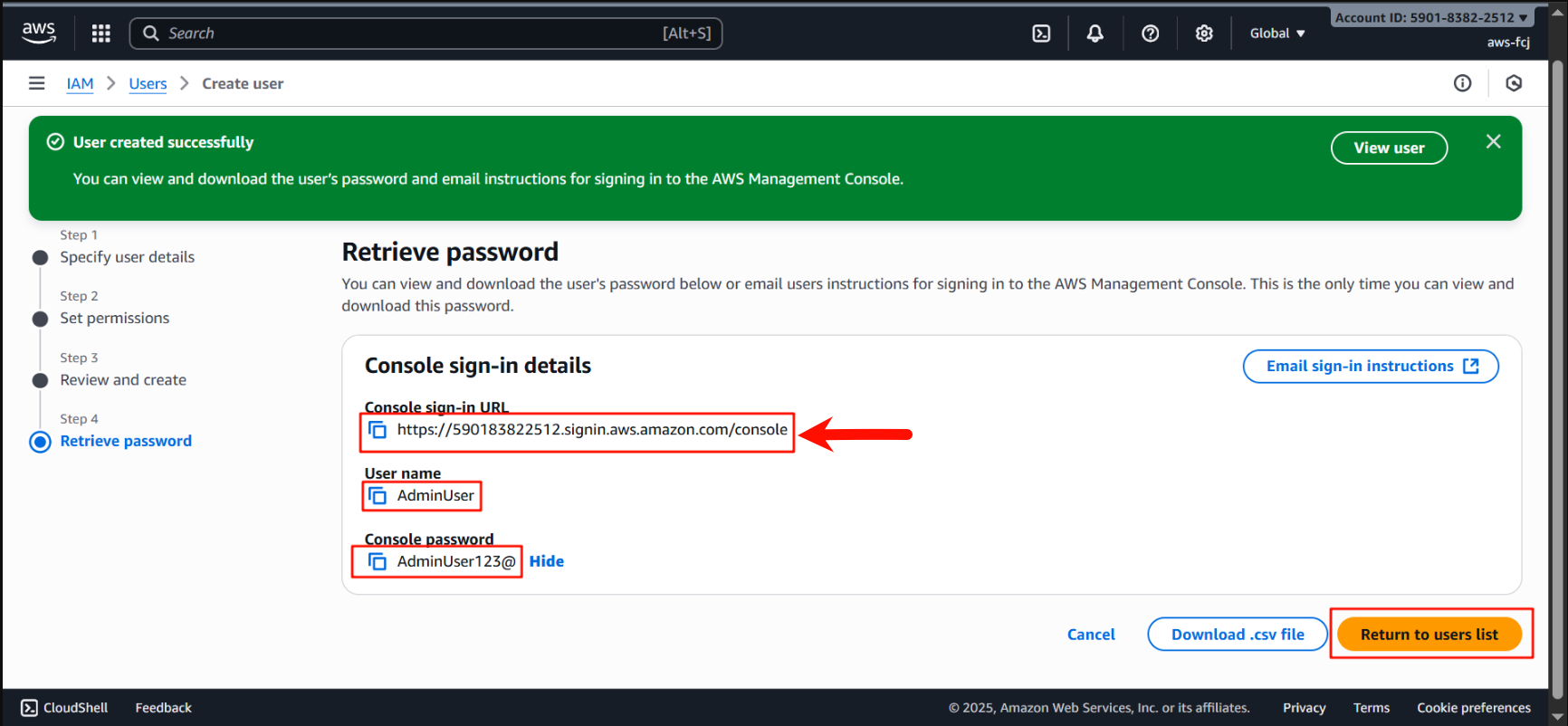
- Copy the console sign-in link.
Create Admin Group
-
Login to Dashboard at AWS Web Service page
-
Click on the account name in the upper right corner and select Security Credentials
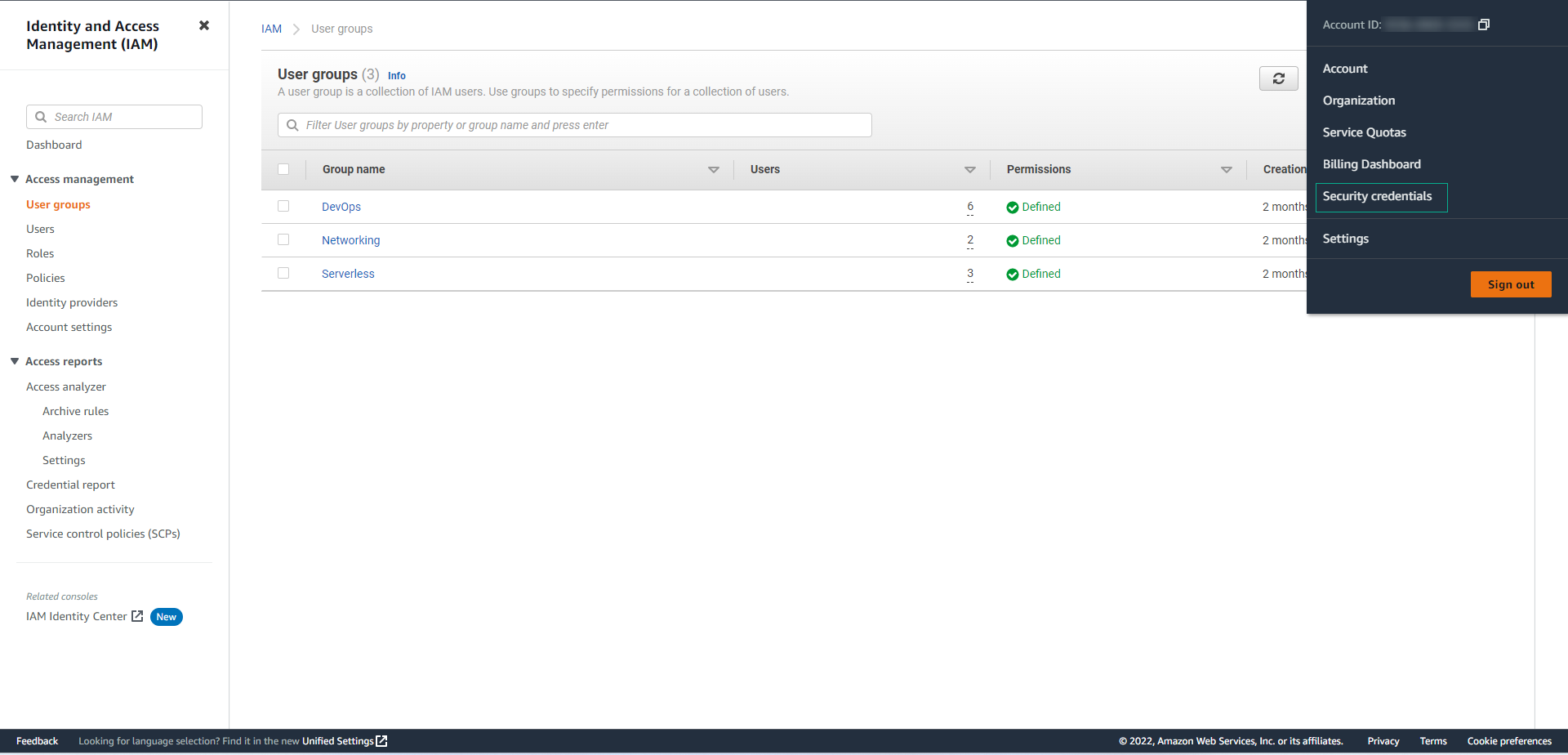
Tip: In case you do not see the Security Credentials menu, you can click on the search icon and enter IAM. Then click on the IAM service to access the IAM service management interface.
- In the left sidebar, select User Groups and then select Create Group
- Under Name the group, enter a Group name (Example: AdminGroup) and scroll down.
- In the Attach permissions policies section, type
AdministratorAccessin the search bar and press Enter. From the list that appears, select AdministratorAccess. Finally, select Create Group.
- Finish creating an admin group.
Create Admin User
-
In the left sidebar, select Users then select Add User
-
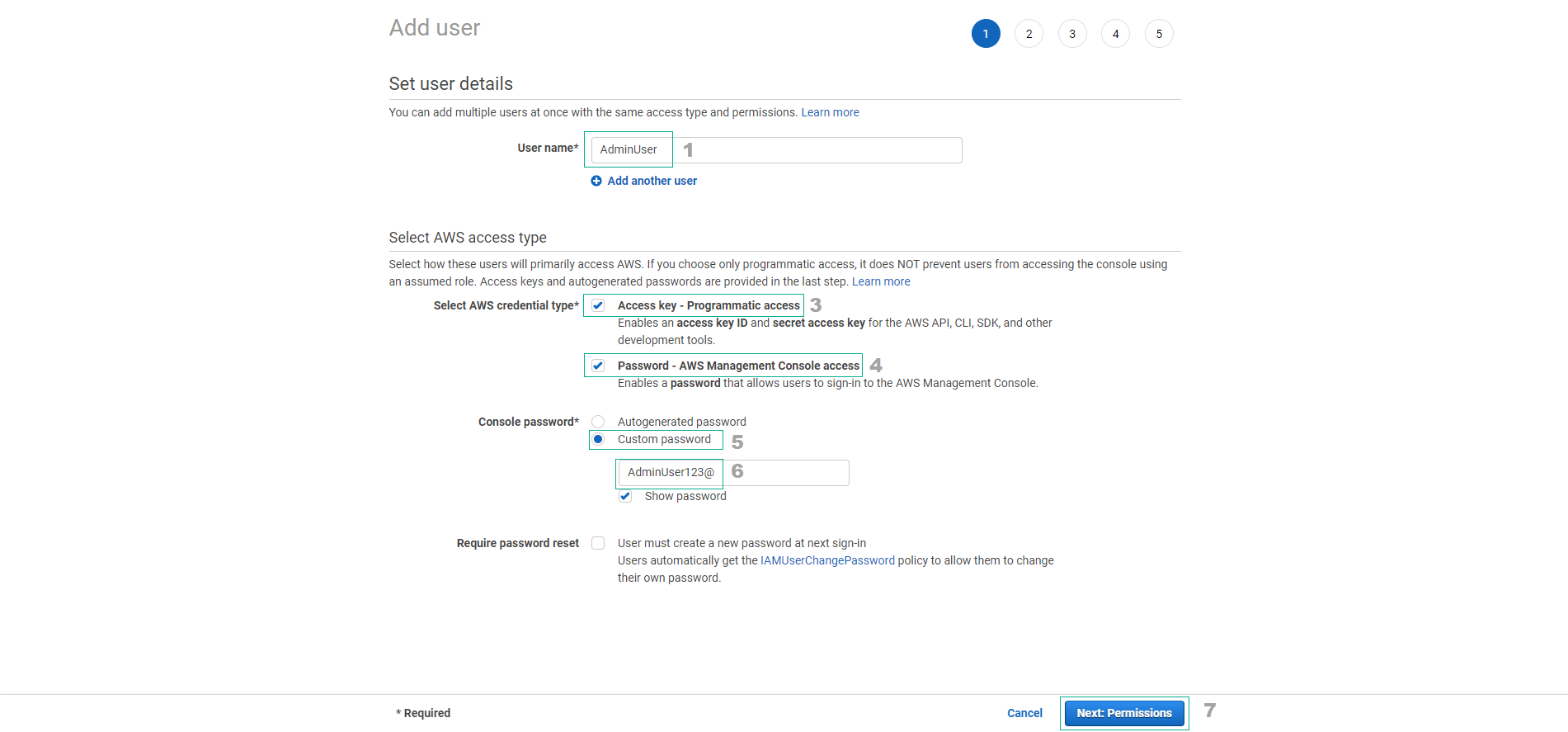
On the Specify user details page, under User details, in the User name box, enter a name for the new user. This is their AWS login. Example: AdminUser
- Selecting Provide user access to the – AWS Management Console (optional) creates an AWS Management Console login for the new user.
- You are asked if you give access to the dashboard to one person. We recommend that you create users in the IAM Identity Center instead of IAM.
- To switch to creating users in IAM Identity Center, select Specify a user in Identity Center.
- If you have not enabled IAM Identity Center, selecting this option will take you to the services page in the control panel where you can enable it. For details on this process, see AWS IAM Identity Center User Guide (inheriting from AWS Single Sign-On).
- If you have enabled IAM Identity Center, selecting this option will take you to the “Specify User Details” page in IAM Identity Center. For details on this process, see AWS IAM Identity Center User Guide (inheriting from AWS Single Sign-On).
- If you cannot use IAM Identity Center, select I want to create an IAM user.
-
For the Console password, select one of the following options:
- Autogenerated password - The user will receive a randomly generated password that meets the account password policy. You can view or download passwords when you reach the Get Passwords page.
- Custom password - The user will be assigned a password that you enter in the box.
- (Optional) Users must create a new password at the next sign-in (recommended) is selected by default to ensure users are forced to change their password the first time they log in.
- Select Next
-
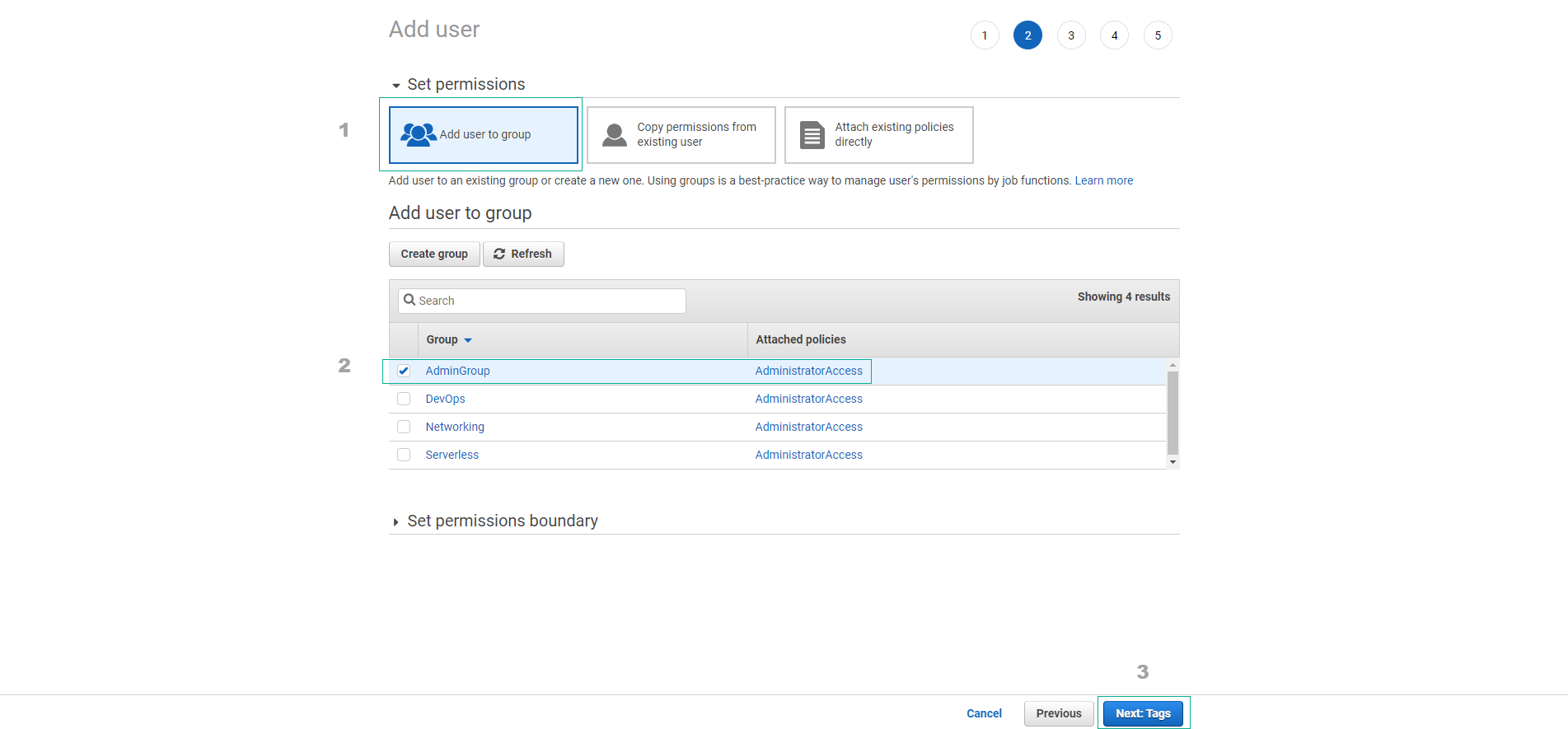
On the Set permissions page, specify how you want to assign permissions to this user. Choose one of the following three options:
- Select Add user to group - Select this option if you want to assign users to one or more groups that already have permission policies. IAM displays a list of groups in your account, along with the policies that have been mounted. You can select one or more existing groups or select Create Group to create a new group. For more information, see Instructions for changing permissions for an IAM user.
- Copy permissions - Select this option to copy all group members, mounted management policies, embedded inline policies and any existing permission boundaries from the current user to the new user. IAM displays a list of users in your account. Choose the user whose permissions best suit the needs of your new user.
- Attach policies directly - Select this option to see a list of AWS-managed and customer-managed policies in your account. Select the policies that you want to attach to the user, or select Create Policy to open a new browser tab and create a new policy. For more information, see step 4 in the Create IAM Policy procedure. After creating the policy, close that tab and return to the original tab to add the policy to the user.
-
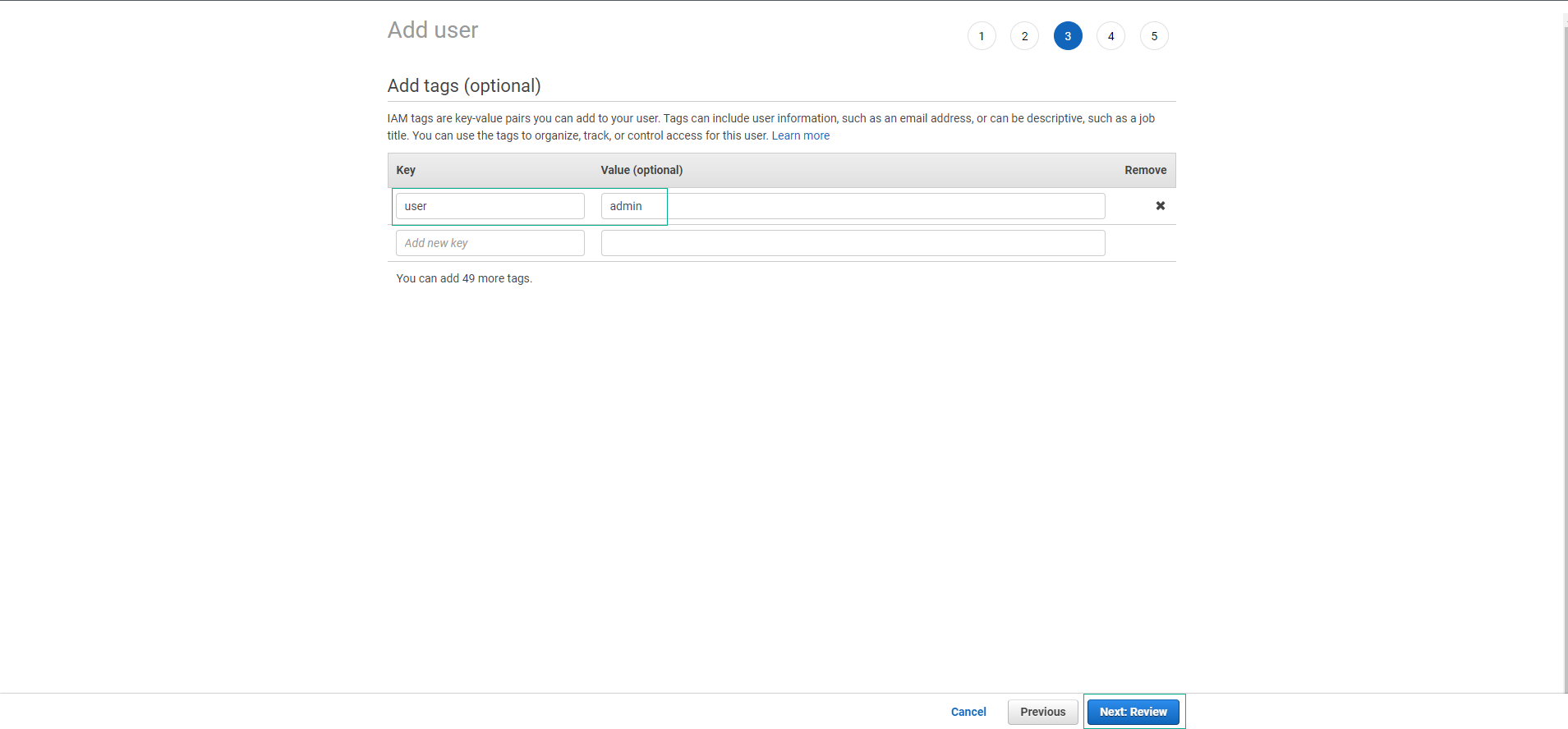
(Optional) On Review and Create, under Tags, select Add a new tag to add data about the user by tagging as a key-value pair. D
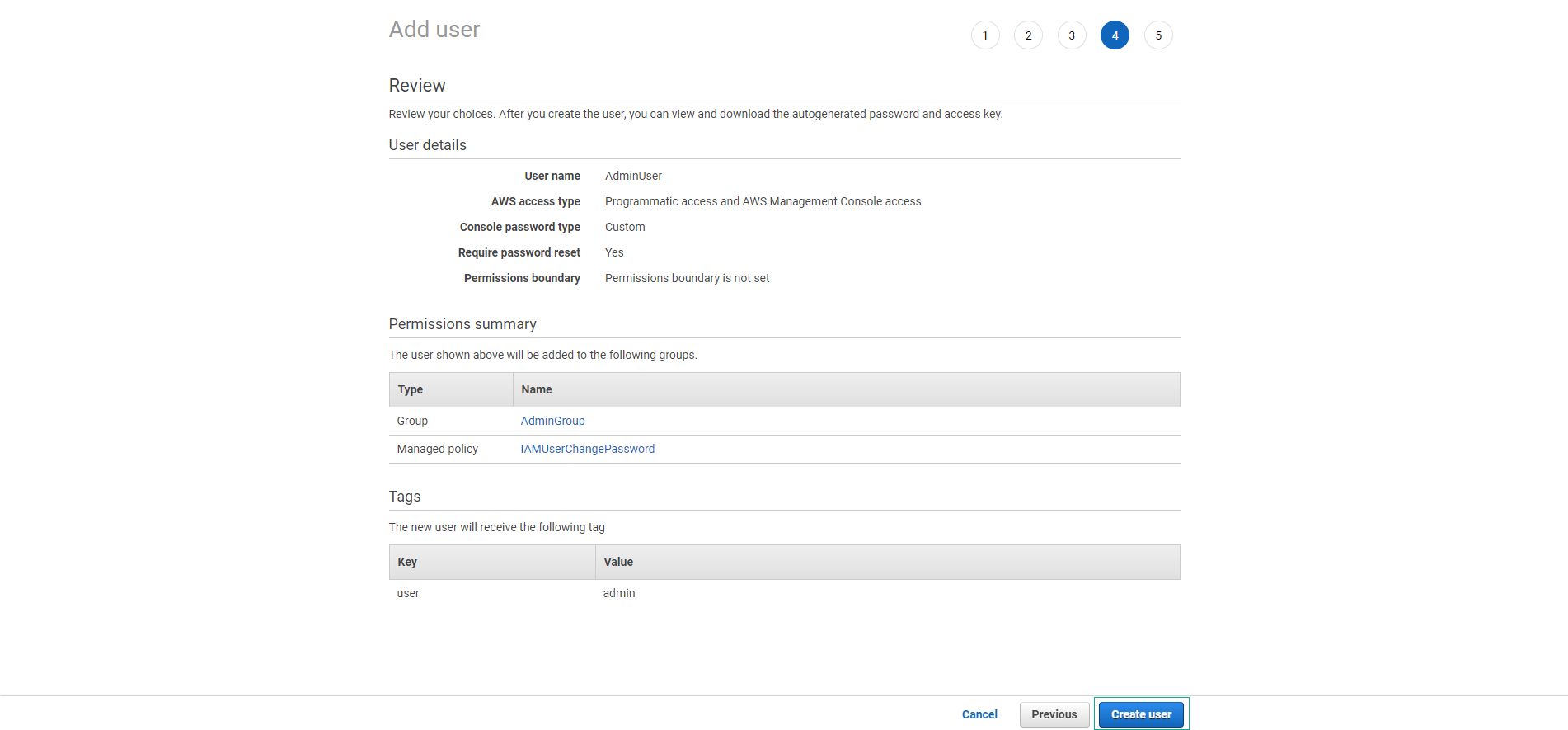
- Review all the options you have selected up to this point. When you’re ready to continue, select Create User.
-
On the Retrieve Password page, get the password specified for the user:
- Select Show next to the password to see the user’s password, from which you can record the password manually.
- Select Download.csv to download user credentials as a .csv file that you can save to a safe location.
-
Check User created successfully
-
Check the user’s group
-
Copy the console-sign link.